
Video 6 of 7 · 5 min · Updated October 11, 2026
How to set up and secure a VPS with Claude Code
A VPS is a rented computer in a data center that is always online. To set one up safely with Claude Code: switch Claude to Manual mode so it asks before every command, have it make an SSH key, order a small Ubuntu server with that key, then give Claude one prompt listing what every new server needs: a normal user, SSH with keys only and no root login, a firewall, automatic security updates and fail2ban. Claude tests the new login before it closes the old one, so you can't get locked out.
What you need
- Claude Code in the terminal (video 5)
- A small Ubuntu VPS (the smallest Spaceship plan was $4.90 a month in October 2026)
The steps
Turn approvals back on (Manual mode)
Open a new folder for your server in VS Code and start Claude in its terminal. On your own computer, letting Claude work without asking is fine, because a fresh project has nothing to lose. A server is different: one wrong command can lock you out or take your site down. Press Shift+Tab until the line at the bottom says manual mode; now Claude asks before every command it runs.
Watch this part (0:31) →Make an SSH key
Ask Claude to make an SSH key (the first prompt below). A key comes in two halves: the private half never leaves your computer and the public half goes on the server. The server then lets in only the computer that holds the private half, so there is no password for anyone to guess. Claude shows the exact command and what it is for; read it and choose Yes. The public key is now on your clipboard.
Watch this part (0:58) →Get a VPS (Spaceship, Ubuntu)
The video uses Spaceship, which sells web addresses and servers in one place. The smallest plan (1 processor, 2 GB of memory) is plenty for websites and browser games, because the server only hands out files. On the order form choose Ubuntu, paste the public key from your clipboard and set a strong root password: you won't log in with it, but it is your way back in through the provider's console. When the server is running, copy its IP address and note the SSH port.
Watch this part (1:32) →Claude secures the server: SSH keys, firewall, fail2ban
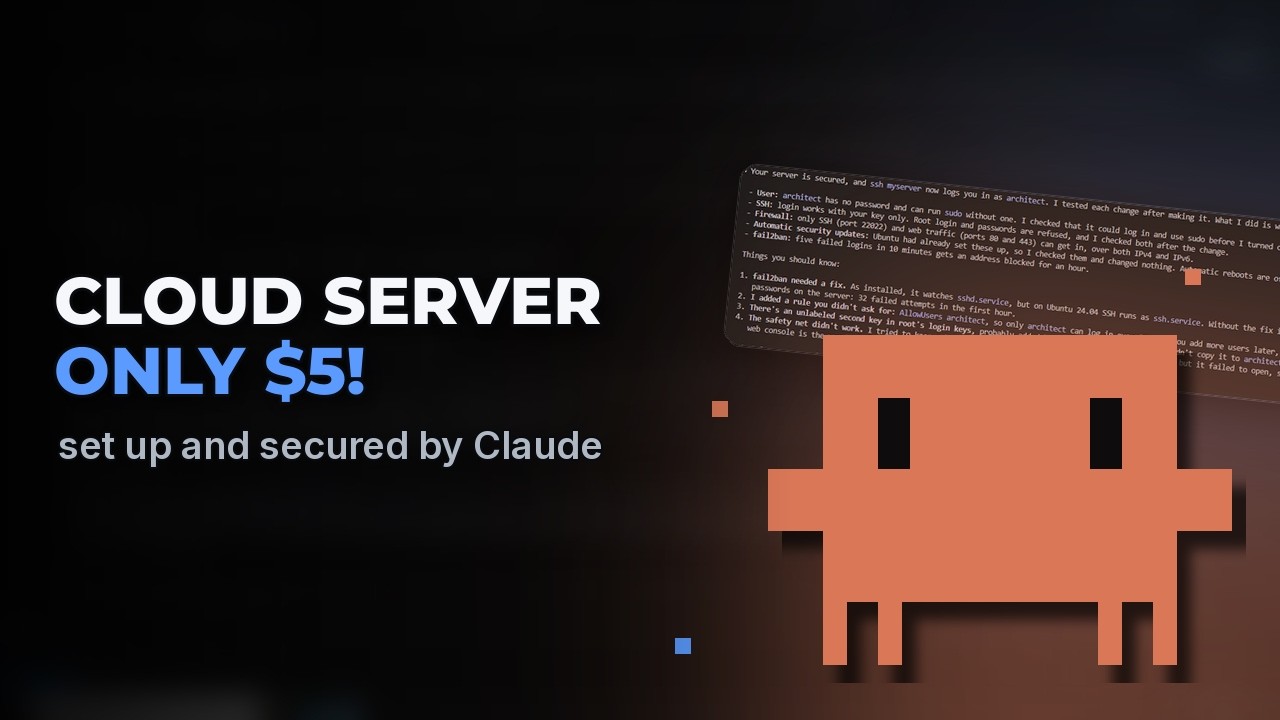
Tell Claude where the server is and what you want (the second prompt below). Claude saves the server under a short name, creates a normal user for everyday work and checks that it can log in, sets a firewall that closes every door except SSH and the two web ports, checks that Ubuntu's automatic security fixes are on, and sets up fail2ban, which blocks any address that keeps failing to log in. Then it switches SSH to keys only and turns off root login. On the recorded server, bots had already tried 32 passwords in the hour before. Every command waits for your Yes, and SERVER.md keeps a record of what changed.
Watch this part (2:30) →Check it yourself
Open a new terminal and type ssh myserver: you are in as your new user and no password was asked. Then try ssh root@myserver, and the server turns it away. If you ever do lock yourself out, the provider's console works without SSH, and that is what the root password is for.
Watch this part (3:58) →
The exact prompts
Copy them as they are. They are the prompts typed in the video.
Make me an SSH key for my new server, with no passphrase, and copy the public key to my clipboard so I can paste it into Spaceship.
My new Ubuntu server is ready at [your server's IP address], SSH port 22022, user root, with the key you just made. Add it to my SSH config as myserver. Then secure it: a new user named architect who can use sudo without a password, SSH with keys only and no root login, a firewall that only lets in SSH and web traffic, automatic security updates, and fail2ban. Log in as the new user before you turn off root, so I can't get locked out. When you're done, write down what you did in SERVER.md.
Commands typed in the terminal
ssh myserver
ssh root@myserver
Links from the video
Questions people ask
How do I secure a VPS?
Five things every new server needs: a normal user instead of root for everyday work, SSH with keys only and root login off, a firewall that only lets in SSH and web traffic, automatic security updates, and fail2ban to block addresses that keep failing to log in. Test the new login before you turn off the old one.
Is it safe to let AI set up a server?
In Manual mode, yes: Claude shows each exact command and what it is for, and nothing runs until you choose Yes. The prompt also tells it to log in as the new user before it turns off root, so there is never a moment you could be locked out.
What is an SSH key?
A pair of files that replaces a password. The private half stays on your computer, the public half goes on the server, and the server only lets in the computer that holds the private half.
How much does a VPS cost?
A few dollars a month. The smallest plan used in the video (1 processor, 2 GB of memory) was $4.90 a month in October 2026, and it is enough for websites and browser games.
What is fail2ban?
A program that watches the login log and blocks any address that keeps failing to log in. Bots try passwords on every server on the internet all day long.
What if I lock myself out of my server?
Use your provider's web console, which works without SSH, and log in with the root password you set when you ordered the server.
Transcript
Read what is said in the video
0:00 Set up and secure a VPS with Claude Code
In this video, I'll show you how to get your own server on the internet and have Claude set it up and lock it down for you. A server is a computer in a data center that's always online, so it can host your websites, games and apps for anyone to use. You rent one for a few dollars a month, and Claude does the technical setup while you approve every step. You'll need Claude Code in the terminal, which we set up in an earlier video. The link is in the description.
0:31 Turn approvals back on (Manual mode)
Open a new folder for your server in VS Code, and start Claude in its terminal. On your own computer, letting Claude work without asking is fine, because a fresh project has nothing to lose. A server is different. One wrong command can lock you out or take your site down for everyone. So press Shift Tab until the line at the bottom says manual mode. Now Claude asks before every command it runs.
0:58 Make an SSH key
First, your computer needs a key to the server, so ask Claude to make one. An SSH key comes in two halves. The private half never leaves your computer, and the public half goes on the server. The server then lets in only the computer that holds the private half, so there's no password for anyone to guess. Here's Claude asking for the first time. It shows the exact command and what it's for, so read it, and choose Yes when it looks right. The public key is now on your clipboard, ready for the order form.
1:32 Get a VPS (Spaceship, Ubuntu)
We're using Spaceship, which sells web addresses and servers in one place. The smallest plan has one processor and two gigabytes of memory, and at the time of recording it's four dollars and ninety cents a month. That's plenty for websites and browser games, because the server only hands out files and the heavy lifting happens on your visitors' devices. The link in the description is an affiliate link, so if you sign up through it, the channel gets a small commission at no extra cost to you. Click Buy now and fill out the order form. Choose Ubuntu, the most common system for servers, paste the public key from your clipboard, and set a strong root password. You won't log in with it, but it's your way back in through Spaceship's console if anything ever goes wrong. Then confirm the order. A few minutes later, your server shows up in the list. Click it, copy its IP address, and note the SSH port.
2:30 Claude secures the server: SSH keys, firewall, fail2ban
Now tell Claude where the server is and what you want. The prompt lists five things every new server needs, and asks Claude to test the new login before it closes the old one. First, Claude saves the server under a short name, myserver, so it never needs the address again. Every command still waits for your Yes, and that's the point. You see each change before it happens. The account a new server gives you is root, which can do anything, so one slip can break the whole server. Claude creates a normal user for everyday work, and checks that it can log in. The firewall closes every door except the ones you use, which are SSH and the two web ports for a website later. Ubuntu already installs security fixes on its own, so Claude just checks that they're switched on. fail2ban blocks any address that keeps failing to log in. Claude noticed it was watching the wrong log on this version of Ubuntu and fixed it, and it found that bots had already tried thirty-two passwords in the last hour alone. Then it switches SSH to keys only and turns off root login. Bots try passwords on every server on the internet, all day long, and now there's nothing for them to guess. Because Claude made sure the new user could log in first, there was never a moment you could get locked out. When it's done, Claude sums up what changed, and SERVER.md keeps a record of it for you, and for Claude next time.
3:58 Check it yourself
To check it yourself, open a new terminal and type ssh myserver. You're in as your new user, and no password was asked. Now try root, and the server turns it away. If you ever do lock yourself out, Spaceship's VM Manager has a console that works without SSH, and that's what the root password is for.
4:21 Wrap up
That's all it takes to get your own server, set up and secured by AI. You bring the ideas, Claude brings the know-how, and now your projects have a home on the internet. Be sure to leave a like and subscribe, so we can keep bringing you more great videos.