
Video 7 of 7 · 5 min · Updated October 11, 2026
How to host a website or game on a VPS with Claude Code (your own domain + free HTTPS)
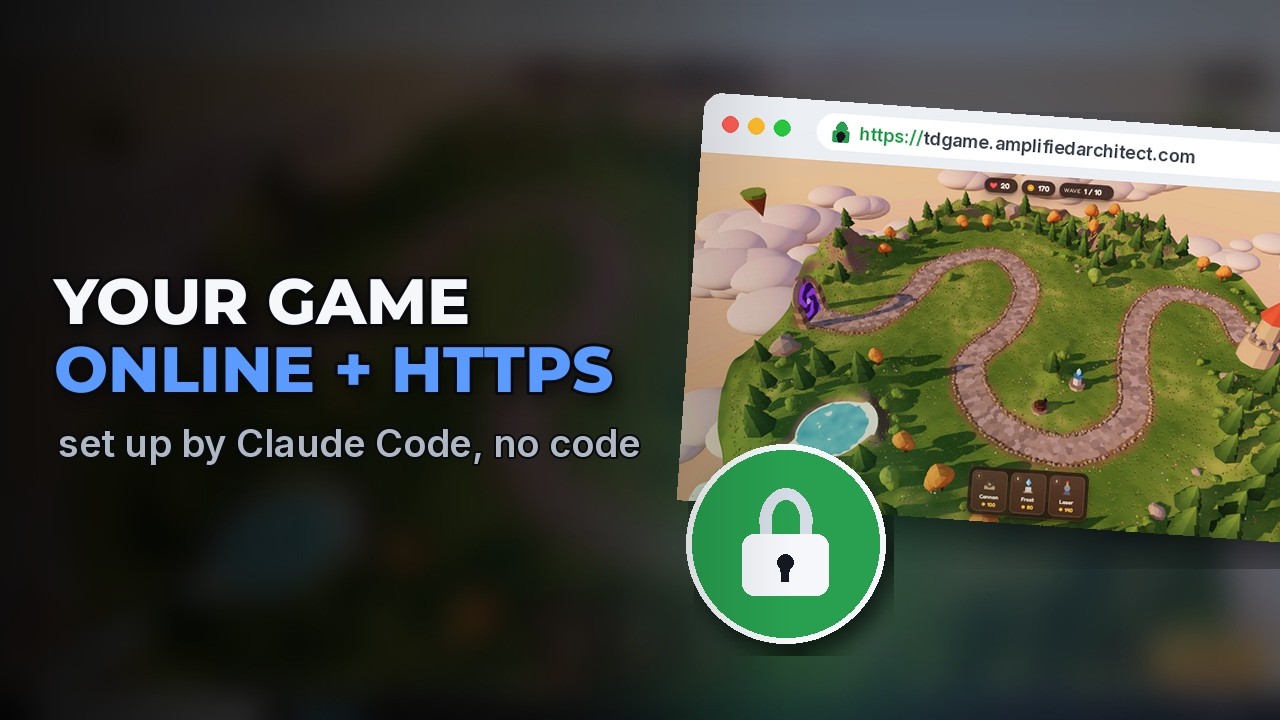
To put a website or browser game online on your own VPS, add a DNS A record that points a name at your server's IP address, then ask Claude Code to install Caddy, upload your production build and add a deploy command. Caddy gets the HTTPS certificate on its own and keeps it renewed, so the padlock just works. A small server is enough even for a 3D game, because it only hands out files and the game runs in each player's browser. After that, every update is one command: npm run deploy.
What you need
- A server Claude can reach over SSH (video 6)
- A web address (domain) and something to put online; the video uses Skyhold, the game from video 5
The steps
Why a small VPS is enough
A 3D game might sound like it needs a powerful server, but the server only hands out the game's files, a few megabytes, once per player. After that the game runs in each player's own browser, on their own graphics card. So the smallest server can handle lots of players at once.
Watch this part (0:40) →Point your domain at the server (DNS A record)
In your domain's DNS records, add a new record. Choose type A, which points a name at a server's IP address. For the host, type the word you want in front of your domain. Enter your server's IP address as the value and click Add. A new name can take a few minutes to work everywhere, so do this step first.
Watch this part (1:04) →Get the game ready for players
Open the game's folder and start Claude; this part only changes files on your computer, so Auto mode is fine. Ask Claude to get the game ready for the public (the first prompt below): the test shortcuts it added for itself should only work while developing, and since anyone can open your link on a phone, ask for touch controls too. Claude tests every change in a browser of its own, on a computer screen and four phone sizes.
Watch this part (1:31) →Put it online: Caddy and free HTTPS
The next steps run on the server, so press Shift+Tab until it says manual mode, then ask Claude to put the game online at your address (the second prompt below). Claude checks that the address already points at the server, installs Caddy, a web server that gets the padlock certificate on its own and keeps it renewed, uploads the build over the same SSH connection, and adds a deploy command. Finally it opens the live site in a browser of its own to check that the game really loads.
Watch this part (2:08) →Play it online, on a phone too
Open your address in the browser: there is the padlock. To see what a phone shows, open the browser's developer tools and turn on the device toolbar. Held upright, the game asks you to turn the phone sideways; sideways, it all works with a finger.
Watch this part (2:57) →Update the live site with one command
From now on an update takes one command. Ask Claude for a change (the third prompt below), then type npm run deploy in a terminal: it builds the game and uploads the new files in a few seconds. Reload the page and the new version is live for everyone.
Watch this part (3:51) →
The exact prompts
Copy them as they are. They are the prompts typed in the video.
Get Skyhold ready to put online. Make the ?debug shortcuts work only while developing, never in the production build. Make it play well on a phone held sideways, with taps instead of clicks and buttons big enough for a finger. Then make a fresh production build and check that it works.
Put Skyhold online at tdgame.amplifiedarchitect.com on myserver. The DNS record already points there. Install Caddy for automatic HTTPS, upload the production build, and add an npm run deploy command that builds the game and uploads the new version.
Add a line under the title on the title screen that says Now playing online.
Commands typed in the terminal
npm run deploy
Links from the video
Questions people ask
How do I host a website on a VPS?
Point a DNS A record at the server, install a web server, and upload your site's production build. In the video Claude Code does the last two over SSH: it installs Caddy, uploads the dist folder and adds a deploy command.
How do I get free HTTPS for my site?
Use Caddy as the web server. It gets the certificate for your address on its own and keeps it renewed, with nothing to configure.
How do I connect a domain to a VPS?
Add an A record in your domain's DNS settings: the host is the name you want (the part in front of your domain) and the value is the server's IP address. It can take a few minutes to work everywhere.
Can a cheap VPS host a 3D game?
Yes, when the game runs in the browser. The server only sends the files once per player; the 3D work happens on each player's own device.
Does this work for a website, not just a game?
Yes. Anything that builds to a folder of files (a dist folder) goes online the same way: a website, a web app or a game.
How do I update a site after it is live?
With the deploy command Claude added: npm run deploy builds the site and uploads the new files in a few seconds.
Transcript
Read what is said in the video
0:00 Host a website or game on a VPS
In this video, I'll show you how to put a game you built with AI online, at your own web address with the padlock, so anyone can play it on a computer or a phone. We'll point a web address at a server, have Claude make the public version of the game and set up a web server with automatic HTTPS, and finish with a single command for every update after that. You'll need a server that Claude can reach over SSH, like the one we set up in our server video, and a game. Ours is Skyhold, the 3D tower defense game Claude built in our Claude Code video. Both links are in the description.
0:40 Why a small VPS is enough
A 3D game might sound like it needs a powerful server, but it doesn't. The server only hands out the game's files, a few megabytes, once per player. After that, the game runs in each player's own browser, on their own graphics card. So the smallest server, with one processor and two gigabytes of memory, can handle lots of players at once.
1:04 Point your domain at the server (DNS A record)
First, the web address. In Spaceship, open your domain's DNS records and add a new one. It can take a few minutes for a new name to work everywhere, so it's a good step to do first. Choose type A, which points a name at a server's IP address. For the host, type the word you want in front of your domain. Ours is tdgame. Enter your server's IP address as the value. Then click Add.
1:31 Get the game ready for players
Now open the game's folder and start Claude. This part only changes files on your computer, so Auto mode is fine. Ask Claude to get the game ready for the public. While it built the game, Claude added test shortcuts for itself, and you don't want players giving themselves free gold, so those should only work while you're developing. And since anyone can open your link on a phone, ask for touch controls too. This part takes a while, because Claude tests every change in a browser of its own, on a computer screen and four phone sizes. When it's done, the fresh production build is what goes online.
2:08 Put it online: Caddy and free HTTPS
The next steps run on the server, so press Shift Tab until it says manual mode. Then ask Claude to put the game online at your address. Claude starts by checking that your address already points at the server, and looks at what's running there before it changes anything. Claude installs Caddy, a web server that gets the padlock certificate for your site on its own and keeps it renewed, so HTTPS just works. Then it makes a folder for the game on the server and uploads the build over the same SSH connection. And because you'll keep improving the game, Claude adds a deploy command that builds it and uploads the new version in one go. Finally, it opens the live site in a browser of its own to check that the game really loads, and sums up what it set up.
2:57 Play it online, on a phone too
Open your address in the browser. There's the padlock, so the connection is secure, and Caddy set that up by itself. It's the same game, now online for anyone with the link. Every model, shot and explosion runs right here in the browser, and the server only sent the files once. To see what a phone shows, open the browser's developer tools and turn on the device toolbar. The page shrinks to the size of a phone, here an iPhone held sideways. Hold the phone upright, and the game asks you to turn it sideways, which keeps the island big enough to play. Tap a tower, tap a tile, and start the wave. It all works with a finger.
3:51 Update the live site with one command
From now on, an update takes one command. Ask Claude for a change, like a line under the title. Claude makes the edit, and in Manual mode it asks before it saves the file. Then, in a new terminal, type npm run deploy. It builds the game and uploads the new files in a few seconds. Reload the page, and the new version is live for everyone.
4:19 Wrap up
That's all it takes to put your game online with AI. You bring the ideas, Claude brings the know-how, and now anyone in the world can play what you built. Be sure to leave a like and subscribe, so we can keep bringing you more great videos.