
Video 2 of 7 · 4 min · Updated October 11, 2026
How to vibe code a game with one prompt (free, with GitHub Copilot)
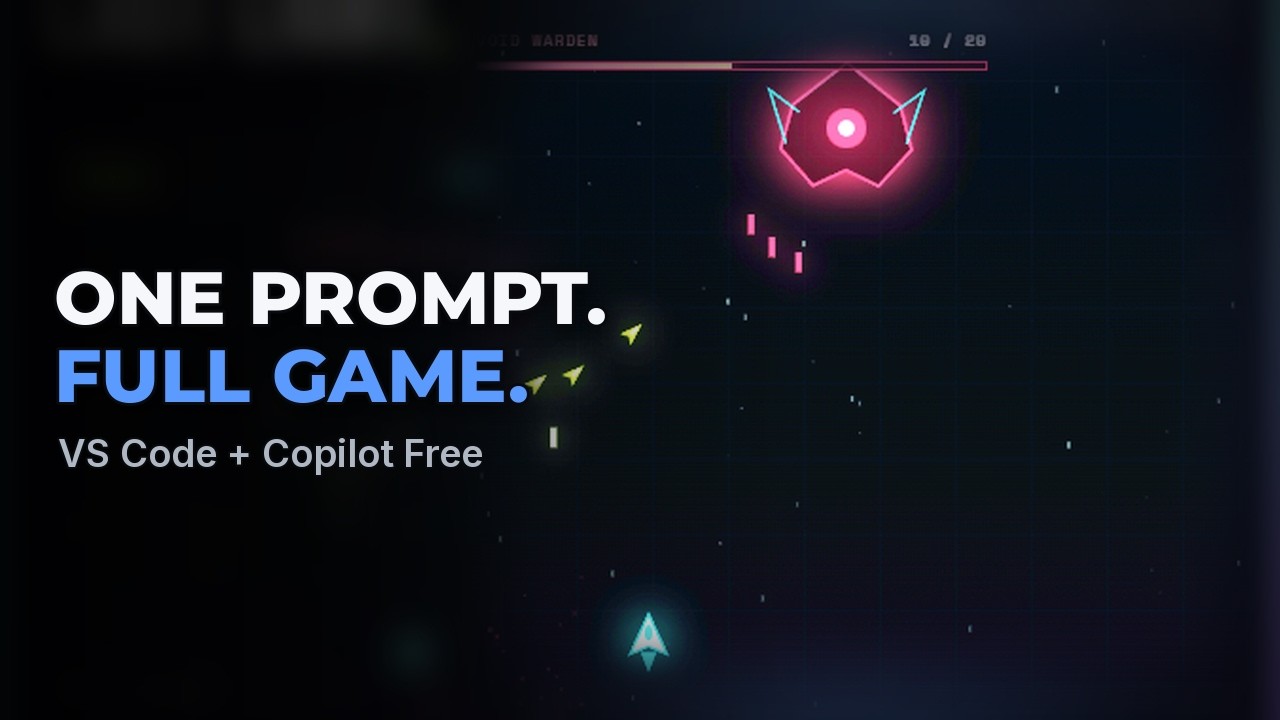
To vibe code a game, open a new folder in VS Code, set GitHub Copilot Chat to Agent mode and describe the game in one detailed prompt that names the look, the sounds, the score and the controls. Copilot plans the game, builds it and tests it in a browser inside VS Code. Then you play it yourself and tell Copilot, in plain words, what is wrong or what to add. In the video, one prompt on Copilot's free plan makes a playable neon space shooter, a second fixes a real bug, and a third adds a boss fight.
What you need
- VS Code with GitHub Copilot connected to WSL (video 1)
- Cost: $0 (Copilot's free plan)
The steps
Start a new project
Click File, then Open Folder, type a name like space-shooter and click OK. Every project gets its own folder, so the AI keeps all of its files together.
Watch this part (0:31) →Let Copilot work without asking (Allow all)
By default Copilot stops and asks before it runs a command or opens a page. To let it work on its own, click the permissions button under the chat box, choose Allow all, and click Enable on the warning. That is fine here because it is a brand-new folder on your own computer with nothing to lose. For something important, like a server, switch it back to Default permissions.
Watch this part (0:42) →The one prompt that builds the game
Make sure the chat is set to Agent, then paste the first prompt below. The more detail you give, the closer the first version gets to what you pictured; that is why the prompt names the look, the sounds, the score and the controls. When Copilot says Completed, it sums up what it built.
Watch this part (1:10) →Play the game
Click Keep to save the changes. Copilot often leaves its browser in phone size after testing the touch controls, so close that toolbar to see the whole game. Press start, move with the arrow keys and shoot with the space bar. In the recorded build the shots flew down instead of up. Copilot said it had tested the game and still missed that, which is why you always try it yourself.
Watch this part (1:49) →Fix a bug by describing it
When something is wrong, tell Copilot what you see, in plain words (the second prompt below). You don't need to know where the problem is: Copilot finds it, fixes it and tests the game again. Click Keep and play again.
Watch this part (2:16) →Add a boss fight and upgrades
Ask for something new (the third prompt below). Copilot adds the boss fight and the missile upgrades to the game you already have, without breaking what works, and tests them again.
Watch this part (2:44) →
The exact prompts
Copy them as they are. They are the prompts typed in the video.
Build me a neon space shooter game that runs in my browser. Make it glow, add explosions and sound effects, keep score with a saved high score, and make it work with the keyboard or touch on a phone.
When I shoot, the bullets go down instead of up, so I can't hit anything. Please fix it.
Add a boss fight after the first wave, and missile upgrades that drop from destroyed enemies.
Links from the video
Questions people ask
Can AI make a game for free?
Yes. The game in this video was built on GitHub Copilot's free plan in VS Code. Before recording, the same prompt was run twice and produced a playable game both times.
Can I make a game without coding?
Yes. You describe the game, the AI writes and tests it, and you play it and say what to change. The video never opens a code file.
What should a game prompt include?
Say where it runs (in my browser), how it should look, what sounds it has, how the score works and how you control it. Details you leave out are details the AI guesses.
What do I do when the AI's game has a bug?
Describe what you see, not what you think the cause is. In the video the fix came from one sentence: "When I shoot, the bullets go down instead of up, so I can't hit anything. Please fix it."
Can I play the game on my phone or share it?
The prompt asks for touch controls, so the game works on a phone's browser. To share it with a link it has to be online; video 7 of the series shows how to put a game on your own server.
Transcript
Read what is said in the video
0:00 Vibe code a game with one prompt
In this video, I'll show you how to build a glowing space shooter game that runs in your browser, just by describing it to an AI. You won't write any code. You tell GitHub Copilot what you want, it builds the whole game and tests it, and then you play it and tell it what to fix. It all works on Copilot's free plan. You'll need VS Code with Copilot connected to Linux, which we set up in the previous video. The link is in the description.
0:31 Start a new project
Every project gets its own folder, so the AI keeps all of its files together. Click File, then Open Folder, type a name like space shooter and click OK to create
0:42 Let Copilot work without asking (Allow all)
it. By default, Copilot stops and asks before it runs a command or opens a page. To let it work on its own, click the permissions button under the chat box and choose Allow all. VS Code warns you that it will now run everything without asking, so click Enable. That's fine here because it's a brand new folder on your own computer with nothing to lose. When you work on something important, like a server, switch it back to Default permissions.
1:10 The one prompt that builds the game
Make sure the chat is set to Agent, then describe the game you want in plain English. Build me a neon space shooter game that runs in my browser. Make it glow, add explosions and sound effects, keep score with a saved high score, and make it work with the keyboard or touch on a phone. Copilot plans the game, writes it and then plays it in a browser built into VS Code to check that it works. The more detail you give it, the closer the first version gets to what you pictured. That's why the prompt names the look, the sounds, the score and the controls. When it says Completed, it's done, and it sums up what it built.
1:49 Play the game
Click Keep to save the changes. Copilot often leaves its browser in phone size after testing the touch controls, so close that toolbar to see the whole game. Now press start and play it. Move with the arrow keys and shoot with the space bar. But look at the shots. They fly down instead of up, so you can never hit anything. Copilot said it tested the game and still missed this, which is why you always try it yourself.
2:16 Fix a bug by describing it
When something's wrong, just tell Copilot what you see, in plain words, like when I shoot, the bullets go down instead of up. You don't need to know where the problem is. Copilot finds it in its own code, fixes it and tests the game again. Click Keep, then play it again. Now the shots go up and the score climbs.
2:44 Add a boss fight and upgrades
Now let's add something new. Ask for a boss fight after the first wave, and missile upgrades that drop from destroyed enemies. Copilot adds both to the game you already have, without breaking what works, and tests them again. Click Keep and play. Grab a missile upgrade, clear the first wave and take down the boss. Each upgrade you pick up adds more missiles to every shot. That's all it takes to build a game with vibe coding and an AI agent. You bring the ideas, the agent brings the know-how, and together you can finally build the project you've been dreaming about. Be sure to leave a like and subscribe, so we can keep bringing you more great videos.