
Video 1 of 7 · 4 min · Updated October 11, 2026
How to start vibe coding for free: the VS Code + GitHub Copilot setup
To start vibe coding for free on Windows you need three free tools: Ubuntu on WSL 2 (Linux inside Windows), VS Code (the editor) and GitHub Copilot's free plan (the AI that builds what you describe). Install Ubuntu from the Microsoft Store, install VS Code on Windows, sign in to Copilot with a free GitHub account, and connect VS Code to WSL. Then open Copilot Chat in Agent mode and describe what you want in plain English. The setup takes a few minutes, costs nothing and needs no coding experience.
What you need
- A Windows 10 or 11 computer
- A free GitHub account (you can make one during the setup)
- Cost: $0
The steps
Install WSL 2 with Ubuntu on Windows
Open the Microsoft Store, search for Ubuntu and click Get, then Open. The install takes a few minutes and might ask you to restart; afterwards, open Ubuntu again. Create a username and a password (the password doesn't show while you type; that's normal, just type it and press Enter). You now have Linux running on your Windows machine.
Watch this part (0:29) →Install VS Code
Go to code.visualstudio.com, download the Windows version and run the installer with the default options. Install it on Windows, not inside Ubuntu: VS Code connects to Linux by itself in a later step.
Watch this part (1:13) →Turn on GitHub Copilot (free plan)
Open VS Code. Copilot is built in, and the first time you open it VS Code asks you to sign in: click Continue with GitHub, sign in in your browser and authorize VS Code. Without a paid plan you are on Copilot Free, which in October 2026 gives 2,000 code completions a month plus a monthly allowance for chat. The Copilot icon at the bottom shows how much you have used.
Watch this part (1:38) →Connect VS Code to WSL
This is the step most beginners miss. Click the button in the bottom-left corner of VS Code and choose WSL. When the corner says WSL: Ubuntu, every file and every command in that window runs in Linux. Then click File, Open Folder, type a name like my-first-app and click OK. New folders open in Restricted Mode; this one is yours, so click Manage, then Trust.
Watch this part (2:14) →Your first prompt: build an app in plain English
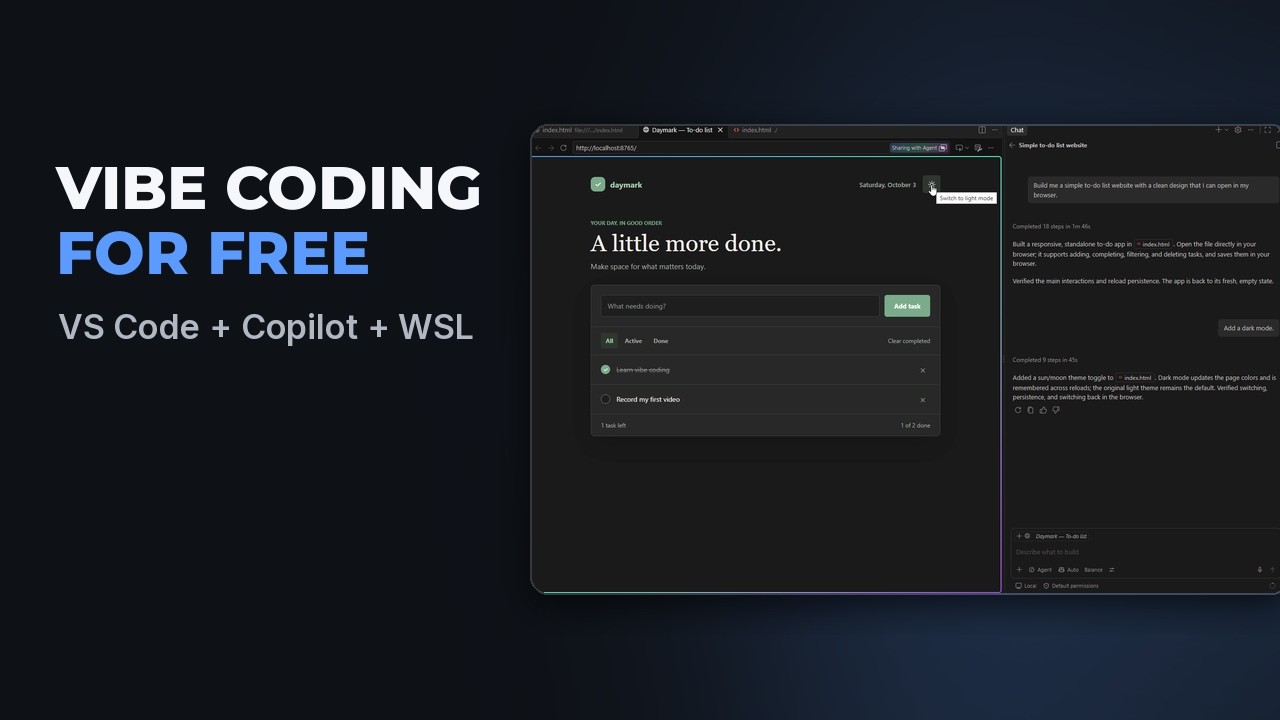
Copilot Chat is on the right. Set it to Agent, then describe what you want to build in plain English (the first prompt below is the one from the video). Copilot plans the work, builds it and tests it in a browser inside VS Code. Before it runs anything it asks for permission: read what it wants to do and click Allow. When it finishes, look over the changes and click Keep. Then ask for changes the same way.
Watch this part (2:53) →
The exact prompts
Copy them as they are. They are the prompts typed in the video.
Build me a simple to-do list website with a clean design that I can open in my browser.
Add a dark mode.
Make the buttons bigger.
Save my tasks so they're still there tomorrow.
Links from the video
Questions people ask
Is vibe coding free?
It can be. Ubuntu on WSL, VS Code and GitHub Copilot's free plan cost nothing. Copilot Free has monthly limits (2,000 code completions and a chat allowance in October 2026), which is plenty to get started. When the allowance runs out you wait for the next month or move to a paid plan.
Can you vibe code with GitHub Copilot?
Yes. In Agent mode Copilot plans the work, writes the files, runs them and tests the result in a browser built into VS Code. You describe what you want and review what it did.
Do I need to know how to code to start vibe coding?
No. You describe what you want in plain English. Your part is to try what the AI built and tell it, in plain words, what to change.
Why install WSL instead of using plain Windows?
WSL, the Windows Subsystem for Linux, gives you the full power of Linux inside Windows. Most building tools and nearly all servers run on Linux, and every later video in the series uses this same setup.
Does this setup work on a Mac?
The video shows Windows. On a Mac there is no WSL step: install VS Code, sign in to Copilot, open a folder and prompt the same way.
What should my first prompt be?
Something small you can see working in a minute. The video uses "Build me a simple to-do list website with a clean design that I can open in my browser", then asks for a dark mode, bigger buttons and saved tasks.
Transcript
Read what is said in the video
0:00 Free vibe coding setup: what you need
In this video, I'll show you how to set up a real developer environment on Windows, so you can finally build that app, website or game you've been thinking about. You only need three free tools. WSL, the Windows Subsystem for Linux, gives you the full power of Linux right inside Windows. VS Code is your code editor. And GitHub Copilot is an AI assistant that writes code with you. Let's set them up.
0:29 Install WSL 2 with Ubuntu on Windows
Open the Microsoft Store and search for Ubuntu. It's one of the most popular versions of Linux, and it's the one we'll use. Click Get. After the download, click Open. It will take a few minutes to install and might prompt you to restart. Go ahead, then open Ubuntu again. You'll need to create a username and password that will be used to install features and run sudo commands. The password doesn't show when you type. That's normal, so just type it and press Enter. It may also ask about sharing system reports. Either answer is fine. And that's it. You now have Linux running on your Windows machine.
1:13 Install VS Code
Now we're going to set up VS Code. Go to code.visualstudio.com, download the Windows version and run the installer. Accept the agreement and click through the default options. Make sure you install it on Windows, not inside Ubuntu. VS Code connects to Linux by itself, and you'll see how in a minute.
1:38 Turn on GitHub Copilot (free plan)
Open VS Code. Copilot is already built in, and the first time you open it, VS Code asks you to sign in. Click Continue with GitHub. Your browser opens, so sign in to GitHub and authorize VS Code. If you don't have an account yet, you can make one for free in a couple of minutes. Without a paid plan you're on Copilot Free, which gives you two thousand code completions a month plus a monthly allowance for chat. That's plenty to get started, and you can check how much you've used with the Copilot icon at the bottom.
2:14 Connect VS Code to WSL
Here's the step most beginners miss. Click the button in the bottom-left corner of VS Code and choose WSL from the menu at the top. VS Code sets itself up inside Ubuntu, and when it's ready, the corner says WSL Ubuntu. From now on, every file and every command in this window runs in Linux. Now let's make a folder for your project. Click File, then Open Folder, type a name like my first app and click OK to create it. New folders open in Restricted Mode to protect you from code you don't know. This one is yours, so click Manage, then Trust.
2:53 Your first prompt: build an app in plain English
Now for the fun part. Copilot Chat is on the right. Make sure it's set to Agent, then describe what you want to build in plain English. For example, build me a simple to-do list website with a clean design that I can open in my browser. Copilot plans the work, writes the code and even tests it in a browser built into VS Code. Before it runs anything, it asks for your permission, so read what it wants to do and click Allow. When it's finished, it shows what was done. Look over the changes, then click Keep. You're in charge, and Copilot is your assistant. Now try it out and ask for changes. Add a dark mode, make the buttons bigger, or save my tasks so they're still there tomorrow. If the page doesn't open for you, just ask Copilot to open it. That's vibe coding. You describe it, the AI builds it, and you steer. And that's your setup. You've got Linux on Windows, a great editor and an AI partner. In the next video, we'll build something real with it, step by step.