
Quick tip · 28 seconds · Updated October 11, 2026
GitHub Copilot YOLO mode in VS Code: how to turn on Allow all
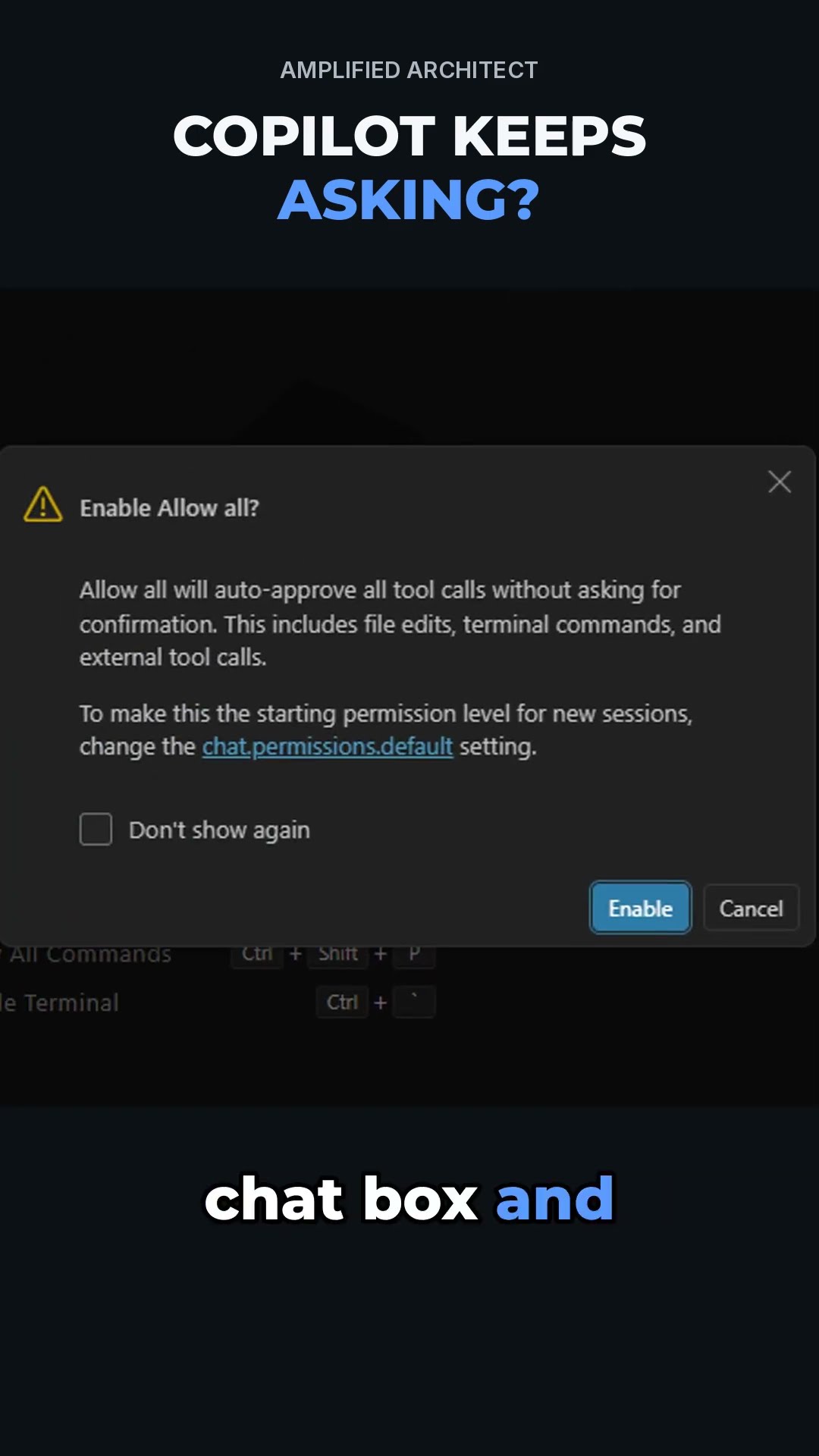
YOLO mode in GitHub Copilot is the Allow all permission setting: Copilot's agent runs commands and makes edits without stopping to ask each time. To turn it on in VS Code, click the permissions button under the Copilot Chat box, choose Allow all, and click Enable on the warning. To turn it off, choose Default permissions from the same button. Use it in a new project folder on your own computer, where there is nothing to lose, and switch it off for anything important, like a server.
What you need
- VS Code with GitHub Copilot (video 1)
The steps
Open Copilot Chat
Open the chat panel on the right side of VS Code.
Click the permissions button
It is under the chat box. By default Copilot stops and asks before it runs a command or opens a page.
Choose Allow all
VS Code warns you that it will now run everything without asking.
Click Enable
Copilot now runs its commands and makes its edits without asking each time.
Turn it back off when it matters
Choose Default permissions from the same button before you work on something important. A new chat starts on Default permissions again, so you choose Allow all once per chat.
Questions people ask
Is Copilot's YOLO mode safe?
It runs everything without asking, so it is as safe as the place you use it. A brand-new folder on your own computer has nothing to lose. A server, or a project you can't afford to break, is where you keep approvals on.
How do I turn off YOLO mode in Copilot?
Click the permissions button under the chat box and choose Default permissions.
Why does Copilot keep asking for permission?
Default permissions make it ask before each command and before opening a page. A new chat also starts on Default, even if the last chat was on Allow all.
Is it called YOLO mode or Allow all?
The setting in VS Code's Copilot Chat is labeled Allow all. YOLO mode is the nickname people search for.
Transcript
Read what is said in the video
By default, Copilot stops and asks before it runs a command or opens a page. To let it work on its own, click the permissions button under the chat box and choose Allow all. VS Code warns you that it will now run everything without asking, so click Enable. That's fine here because it's a brand new folder on your own computer with nothing to lose. When you work on something important, like a server, switch it back to Default permissions.